
Best Emulator for PC to Play Android Games – Full Guide 2026
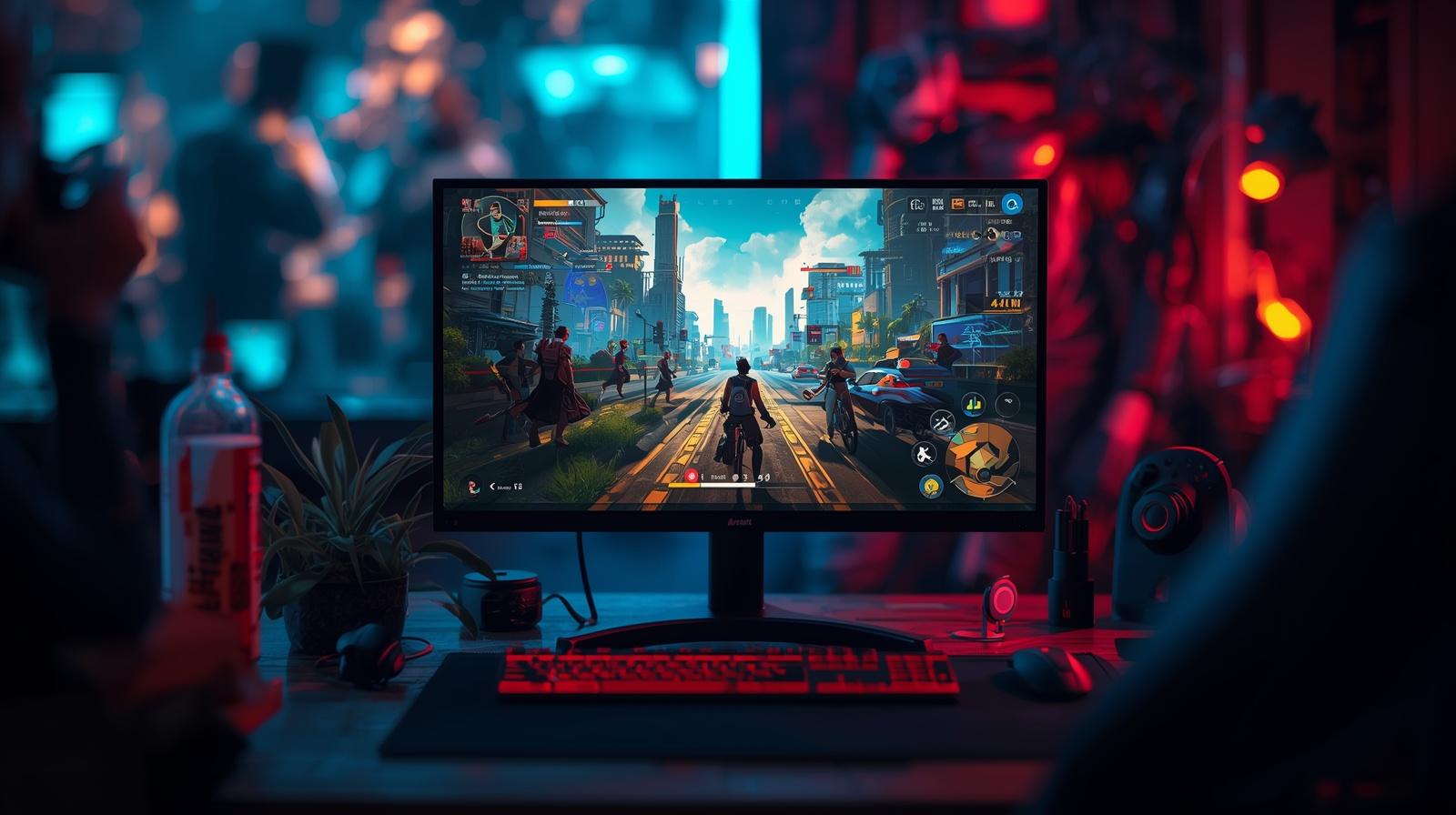
Imagine playing your favorite mobile games on a big screen with a keyboard, mouse, or even a controller. Sounds amazing, right? Well, that is exactly what an Android emulator lets you do.
If you have been searching for the best emulator for PC to play Android games, you have landed in the perfect place. This guide will walk you through everything — from what emulators actually are to which ones are worth downloading in 2026.
Let us dive in.
What Is an Android Emulator and Why Do You Need One
An Android emulator is a software program that lets your PC act like an Android phone or tablet. It creates a virtual Android environment on your computer so you can install and run any Android app or game.
Why would someone want this? Great question. Here are a few solid reasons.
You want to play mobile games on a bigger screen. Your phone is too old or slow to handle new games. You want better controls using a keyboard and mouse. You are a content creator who wants to record gameplay easily. You simply enjoy a smoother, lag-free gaming experience
Whatever your reason, emulators are a game-changer — literally.
Things to Look for in a Good Android Emulator
Not all emulators are created equal. Before you download the first one you find, here is what you should check.
Performance – Does it run games smoothly without major lag? Compatibility – Does it support the games and apps you want? Controls – Can you map keyboard keys and use a gamepad? Safety – Is it free from viruses and malware? Updates – Is the developer still actively updating the software?
Keep these in mind as we go through the best options below.
Best Emulators for PC to Play Android Games in 2026
- BlueStacks 5 – The King of Android Emulators
BlueStacks is, without a doubt, the most popular and most trusted Android emulator for PC. It has been around for years and keeps getting better with every update.
It supports thousands of games, including PUBG Mobile, Free Fire, Clash of Clans, and Mobile Legends. The key-mapping feature lets you assign any action to your keyboard, making mobile games feel like proper PC titles.
BlueStacks 5 is faster and lighter than older versions, and it runs smoothly even on mid-range computers. It is free to download and use, which makes it even better.
Best for: All-around use, popular mobile games, beginners
- LDPlayer 9 – A Speed Demon Worth Trying
LDPlayer has quietly become one of the strongest competitors to BlueStacks. It is designed specifically for gaming and is known for its speed and stability.
It supports high frame rates, multi-instance gaming (run multiple games at once), and even has its own app store. If you love battle royale games or strategy titles, LDPlayer handles them beautifully.
Best for: Gamers who want speed and multitasking
- NoxPlayer – Great for Older PCs
If your PC is not the newest machine on the block, NoxPlayer is a fantastic choice. It is lightweight, easy to set up, and runs well even on lower-end hardware.
It also has great controller support and lets you customize controls quickly. The interface is clean and beginner-friendly, so you will not feel lost when setting it up for the first time.
Best for: Older PCs, casual gamers, beginners
- MEmu Play – Powerful and Versatile
MEmu is another solid emulator that deserves more attention than it gets. It supports both Intel and AMD processors, which means it works on a wider range of computers.
It also allows you to run multiple instances at the same time and supports the latest Android versions. If you are playing games that require newer Android features, MEmu handles that well.
Best for: Users with AMD processors, multitasking
- Google Play Games for PC – The Official Option
Google launched its own official PC gaming platform that lets you play select Android games natively on Windows. It is not a traditional emulator, but it offers the smoothest and most secure experience for supported titles.
The game library is still growing, but what is available runs flawlessly. If your favorite game is supported here, this should be your first stop.
Best for: Casual gamers who want an official, safe experience
Tips to Get the Best Experience from Your Emulator
Here are some quick tips that will level up your emulator experience right away.
Enable virtualization in your PC’s BIOS settings — it makes emulators run much faster. Allocate more RAM to the emulator in its settings if your PC has 8GB or more. Use a wired internet connection for smoother online gaming. Keep your graphics drivers updated for better performance. Close background apps while running the emulator to free up resources
Small tweaks like these make a huge difference in performance.
Conclusion
Finding the best emulator for PC to play Android games does not have to be complicated. Whether you go with the power of BlueStacks, the speed of LDPlayer, or the official Google Play Games platform, there is something here for every type of gamer.
Start with one, test it out, and see which one feels right for you. The best part? Most of them are completely free. So there is really nothing stopping you from jumping in today.
Go ahead — your mobile games are waiting for you on the big screen.
FAQs About Android Emulators for PC
Q1. Is it safe to use an Android emulator on a PC?
Yes, as long as you download from the official website of the emulator. Trusted options like BlueStacks, LDPlayer, and NoxPlayer are completely safe. Always avoid third-party download sites to stay protected.
Q2. Do Android emulators slow down your PC?
They can use a good amount of RAM and CPU, but modern emulators like BlueStacks 5 and LDPlayer 9 are optimized to be lightweight. If your PC has at least 4GB of RAM and a decent processor, you should be fine.
Q3. Can I play all Android games on a PC emulator?
Most popular Android games work great on emulators. However, some games with heavy anti-cheat systems may block emulator access to prevent cheating in online matches. Always check if your specific game supports emulator play.
Q4. Which emulator is best for low-end PCs?
NoxPlayer and LDPlayer are both excellent choices for low-end or older computers. They are lightweight and still deliver a good gaming experience without putting too much strain on your system.
Q5. Is BlueStacks really free?
Yes, BlueStacks is free to download and use. It does show some ads inside the launcher, but the gaming experience itself is not interrupted. You can also upgrade to a premium version for an ad-free experience.



Leave a Reply